
Backups
Configure backup functionality
In order to successfully backup websites the following settings must be configured:
- A Backup role must be installed on a server
- The website must be assigned a ‘Backup’ role
- The hosting package must allow ‘Backups’, ‘Allow manual backups’ and ‘Allow self restore backups’
Generate a Backup
- Open Websites in the left side bar
- Select the website you would like to backup
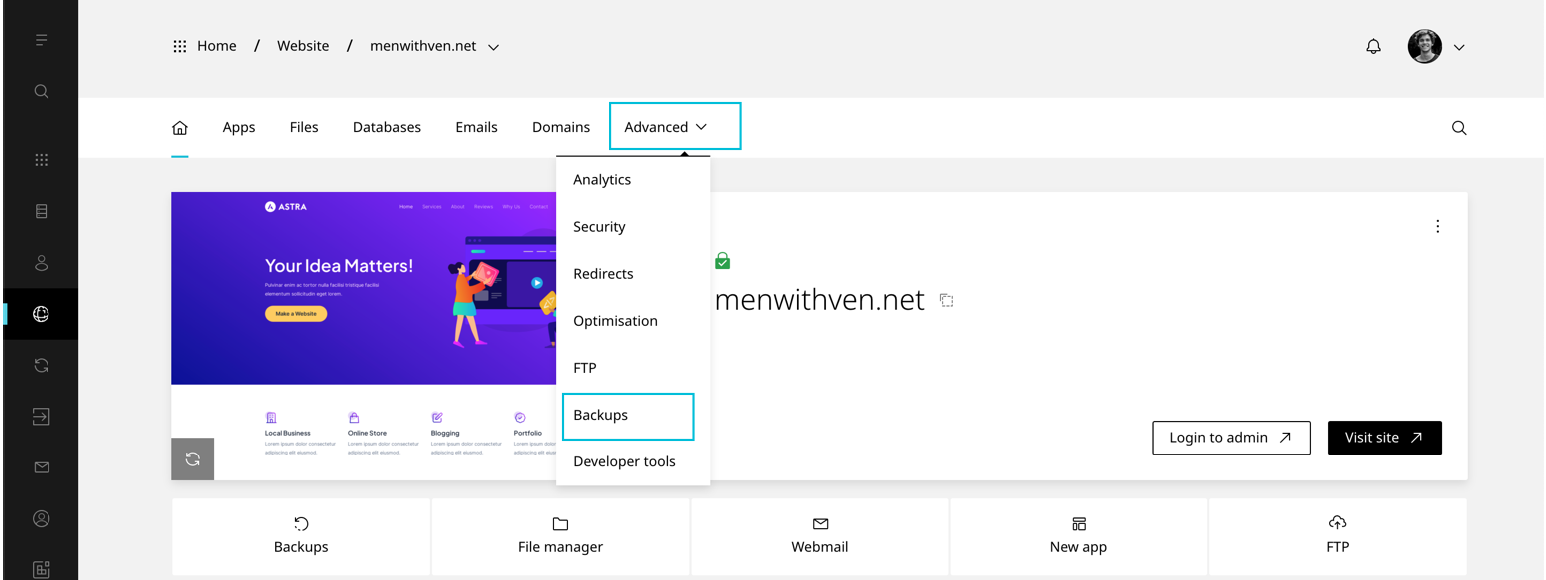
- When the website dashboard loads select the Advanced drop down in the top navigation, then click Backups
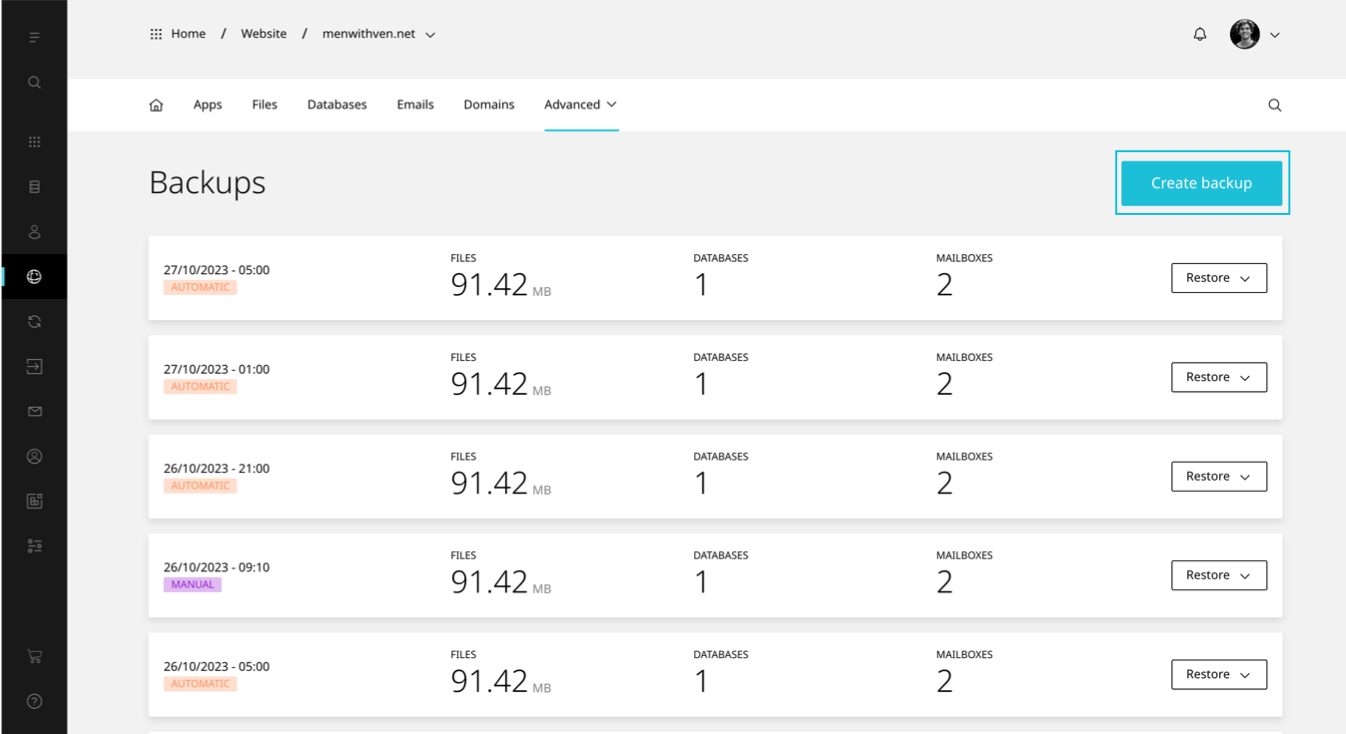
- Select Create backup
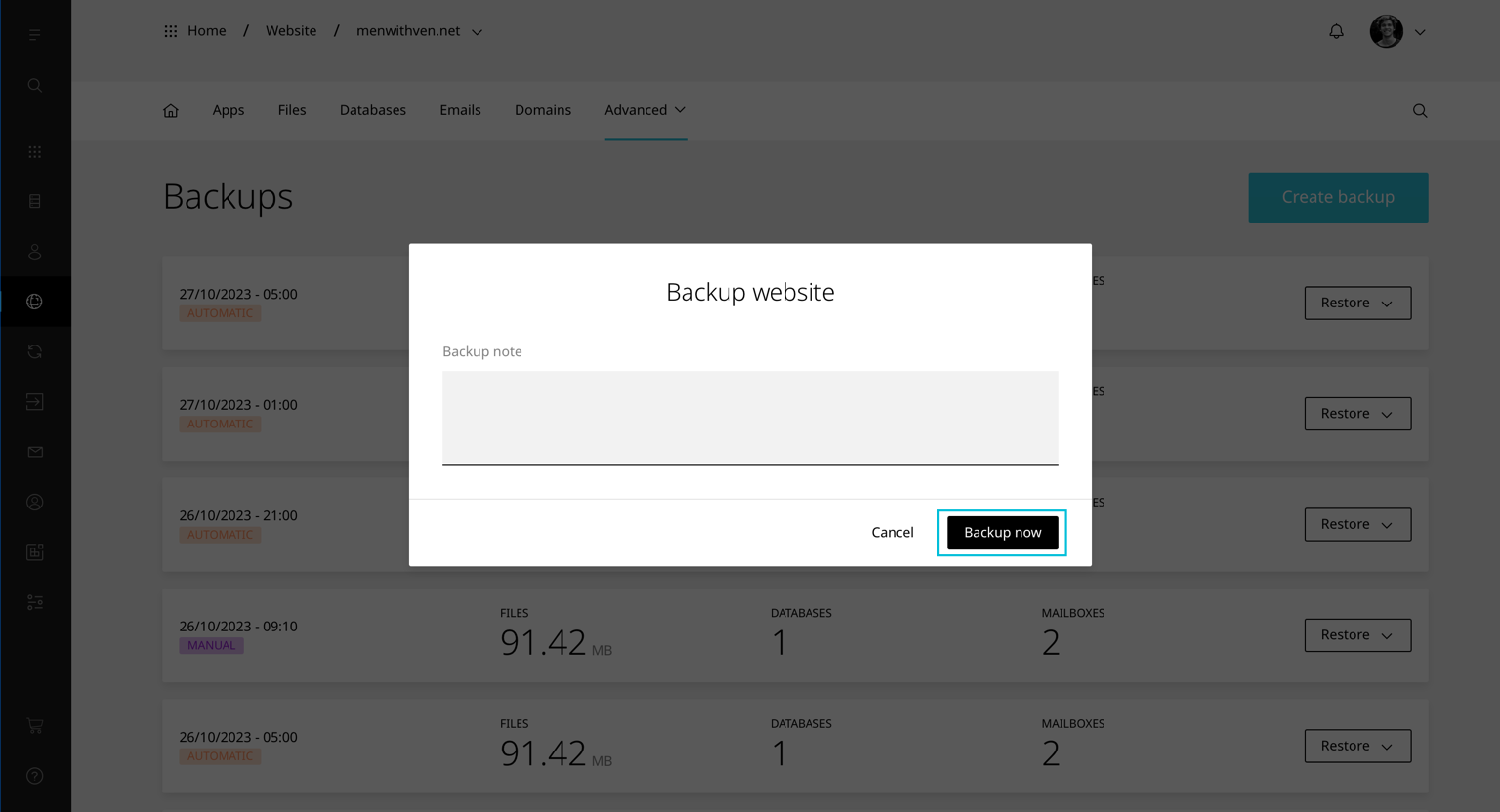
- Enter a Note and click Backup now
TIP
If you do not see the Create backup button check the hosting package has ‘Allow manual backups’ enabled
Restore a Backup
There are 3 different on website restores.
Three types of website restores:
Email this will restore all email accounts and forwarders
Website this will restore all files and databases
Custom this will restore only the selected files and email accounts chosen by you
To restore a website backup:
- Open Websites in the left side bar
- Select the website you would like to restore to a backup
- When the website dashboard loads select the Advanced drop down in the top navigation, then click Backups
- Navigate to the backup you would like to restore and select Restore
- Select the type of restore – either Email , Website or Custom
Selecting Email will restore all email accounts on the websites. Selecting Website will restore all files and databases. This excludes email accounts. Selecting Custom will allow you to select any combination of ‘All files’, specific ‘datbases’ or ‘All email accounts’.
WARNING
Any changes made between your last backup at the point of restoration will be deleted and may not be recoverable.